
Airfield Operations
Three Copies of the Same Day: How to Replace Paper Logs and Spreadsheets in Airport Operations
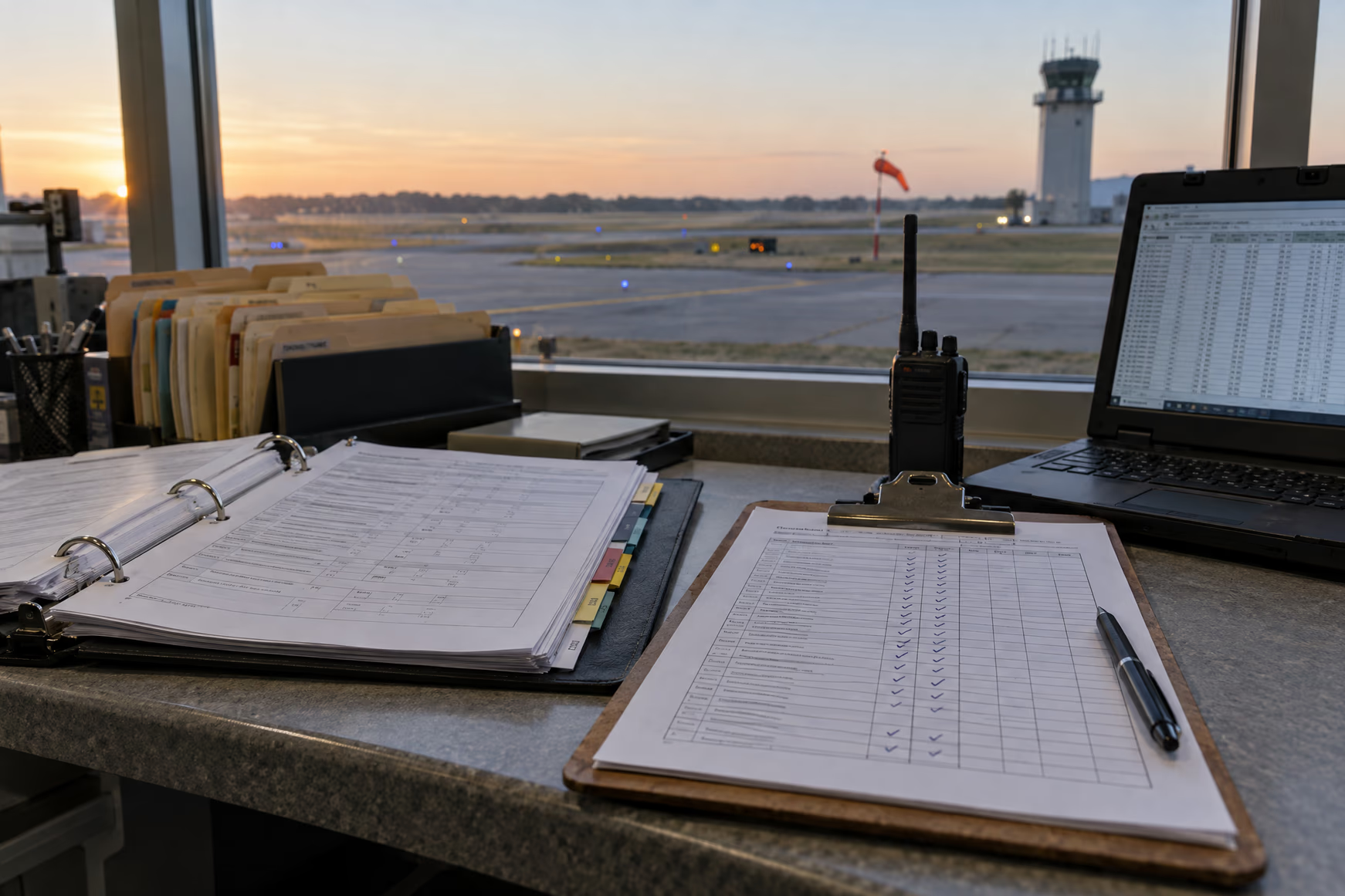
To replace paper logs and spreadsheets in airport or airfield operations, move to a system where each piece of work is recorded once, when it happens, and flows to every log, list, and record that needs it. The FAA’s self-inspection guidance already allows electronic logs, as long as you can print hard copies when necessary and your records retention holds. Make the switch in stages: inventory what lives on paper, move the workflow with the most re-entry first, run paper alongside it with a set end date, protect retention and export, and bring the shift along.
The problem this solves is rarely the medium. It is the same pavement finding written on the inspection checklist, again on the discrepancy sheet, again on the shop’s work order, and once more in the shift log, with each copy free to disagree with the others: three copies of the same day, and none of them the whole day. And it is the day reconstructed afterward at a desk, from memory, when the details have already gone missing.
This guide is for operations leads, Airfield Managers, and the people who sponsor the change and then have to run it. It covers what paper does well, where it breaks, what the FAA says about electronic records, what a digital setup should actually mean, and a playbook for the switch that works whatever tool you pick.
Why paper and spreadsheets are still running the airfield
Paper earned its place. It works with no signal and no login, it needs no training, inspectors know how to read it, and the FAA’s own self-inspection guidance, AC 150/5200-18D, still includes a condensed one-page checklist for airport operators that use a paper checklist (Appendix B.2). Spreadsheets are flexible and free, and someone on staff already knows how to build one. In many shops the spreadsheet is the advanced tool, and plenty of excellent programs run that way.
The trouble is not that the medium is old. It is three habits the medium forces: re-entry, where the same event is written several times; drift, where the copies stop agreeing; and reconstruction, where the day is rebuilt afterward from what someone remembers. A move to software that keeps those habits changes nothing worth the disruption.
Where paper logs and spreadsheets break down
The same event gets written three or four times
A failed self-inspection item becomes a line on the discrepancy sheet, then a work order for the shop, then a note in the shift log. Every copy is a chance to mistype the location, drop the photo, or leave one version open after another is closed. The goal is the reverse: the failed item becomes the discrepancy, the discrepancy becomes the work order, and the status change writes itself to the log, so nothing is typed twice.
Copies drift apart, and nobody knows which one is current
The day’s movements sit in a shared spreadsheet at the operations desk, get relayed to the tower by phone, and get retyped for anything the public sees. Three copies of the same day drift apart. Required reading goes the same way: a sign-in sheet says everyone read the winter operations plan, but the plan has been revised since, and the sheet still points at the old version.
Nothing on paper watches the clock, and shift change runs on memory
An aircraft past its ETA, a discrepancy aging past thirty days, a checklist item that quietly carried over from yesterday: none of them raise a hand. A row in a spreadsheet does not alert anyone, and on a busy shift, noticing is the first thing to go. Then the shift ends, and the field has to be exactly as safe on the new crew’s first morning as it was on the old crew’s last. A paper turnover depends on what the outgoing person remembers to write down at the end of a long shift, and the incoming crew inherits whatever was left out.
“Can you show me?” becomes an archaeology project
When an inspector, an incident review, or leadership asks for a specific day, retrieval means pulling binders and spreadsheets by date and hoping the folder is where the one person who built it left it. The work may have been done well. The record of it is the problem. On a paper list, a crossed-out line does not even say who confirmed the repair or when. Treat closure as its own dated verification, by someone who looked, not a line through the entry. The full inspection-readiness treatment is in our guide to preparing for a Part 139 certification inspection.
Can Part 139 records be kept electronically? What the FAA says
Yes. The FAA’s advisory circular on airport safety self-inspection, AC 150/5200-18D, lists in Section 1.1.1 what an airport self-inspection program does, including that the operator “maintains a self-inspection log (can be electronic).” Section 5.2 says inspection logs can be electronic “but the airport operator must be able to print hard copies when necessary.” Section 5.2.1 says airports can use electronic record keeping programs “specifically designed to meet self-inspection requirements,” and that those records “must be available to the Administrator in an acceptable form during any inspection conducted by the FAA.”
Content matters more than medium. Under 14 CFR §139.327(c)(1), a certificate holder must prepare and keep, for at least 12 consecutive calendar months, a record of each inspection “showing the conditions found and all corrective actions taken.” The advisory circular pairs that with a work order system (Section 5.1), so checklist deficiencies are corrected and documented in a timely manner. Section 6.4 adds that uncorrected deficiencies “should continue to be documented on inspection checklists until they are resolved,” and that all corrective actions must be documented “either on the checklist or on a work order.”
Records are furnished on request. 14 CFR §139.301 opens with “In a manner authorized by the Administrator” and requires each certificate holder to furnish, on request, all records the part requires. Paragraph (c) adds any other records required by the Administrator, by Part 139, or by your Airport Certification Manual. Retention varies by record type, and there is no single Part 139 retention period. Paragraph (b) sets one for each kind of record:
| Record | Keep for |
|---|---|
| Personnel training and orientation | 24 consecutive calendar months |
| Emergency (ARFF) personnel training | 24 consecutive calendar months |
| Airport fueling agent inspection | 12 consecutive calendar months |
| Fueling personnel training | 12 consecutive calendar months |
| Self-inspection | 12 consecutive calendar months |
| Movement and safety area access training | 24 consecutive calendar months |
| Accidents and incidents in movement and safety areas involving an air carrier aircraft or ground vehicle | 12 consecutive calendar months |
| Airport condition information dissemination | 12 consecutive calendar months |
| Safety risk management documentation | The longer of 36 consecutive calendar months after the risk analysis, or 12 consecutive calendar months after required mitigations are complete |
| Safety communications | 12 consecutive calendar months |
Treat this as a summary with a link, not legal advice, and check the current text of §139.301 when you set your retention rules. What that means in practice, as our operational reading and not FAA text: a digital system should keep the conditions found and the corrective actions, as §139.327(c)(1) requires, plus who did the work and when; let you retrieve a record by date; print it, as AC 150/5200-18D Section 5.2 requires; and export it in formats your records custodian can keep. Confirm your approach with your FAA Airport Certification Safety Inspector and reflect it in the ACM where it applies. Nothing here makes any software FAA-approved, and no electronic record is automatically in an acceptable form. That determination sits with the FAA.
A note for military airfields
Military airfield management runs under Air Force guidance (DAFMAN) and the military’s airfield design criteria (UFC), with its own records-disposition rules, and the events log and the daily review sign-off have their own forms and cadence. The playbook below applies just the same. Confirm electronic-record and disposition requirements with your records manager before you retire anything.
What “digitized” should actually mean: one shared picture of the airfield day
Scanning a form or adding tabs to a spreadsheet changes the medium without changing the habits. A digital setup is worth the disruption when it passes these tests, whatever product is behind it:
- Recorded once, at the time of the work. The finding is entered on the field, on the device in hand, not retyped later at a desk.
- Attributed and time-stamped. Every entry says who and when, in Zulu where the operation runs on it.
- Linked. A finding carries its note, photo, and location into the discrepancy and the work order without anyone copying them.
- One current version. The ops desk, the tower, ARFF, and maintenance read the same record, not their own copies of it.
- Works where the work happens. It keeps working with degraded or no connectivity, and it is honest about what has not synced yet.
- Closure is verified. Marking work done and confirming it on the field are two separate, dated steps.
- Yours to keep. Everything exports in open formats, prints when an inspector asks, and belongs to the operation, not the vendor.
What does not count: scanned PDFs of paper forms, a shared spreadsheet with more tabs, or a separate app for each task that still needs re-entry between them. Each can look like progress on a slide. On the field they keep the re-entry and the drift, and they add a login.
How to make the switch: a practical playbook
This works with any tool. No product names until the end.
1. Audit everything that lives on paper or in a spreadsheet
Go through the ops desk, the trucks, the binders, the shared drive, and the inboxes, and list every log, checklist, form, and spreadsheet. For each one, note the owner, how often it is written, and who reads it. Note where else the same information gets re-entered. Note its basis (self-inspection under §139.327, airport condition reporting under §139.339, training under §139.303) and its retention period under §139.301 or your disposition schedule. Then ask whether anyone actually uses it. The output is a one-page inventory, and the re-entry column is the map for everything that follows.
2. Pick what to move first
- Look for high frequency (daily), high re-entry (it feeds several other records), high handoff risk (it crosses shifts or departments), and one clear owner.
- The usual first candidates are the daily self-inspection with its discrepancies and work orders, because one finding feeds several records, or the shift log and shift checklist, because continuity across crews is where the loss is felt.
- Avoid starting with a rarely used or highly customized form, or a workflow with no single owner.
- Move a whole flow, from inspection to discrepancy to verified closure, not one isolated form. Move one form and the re-entry simply relocates.
3. Run paper in parallel, with a defined end
- Name the system of record for the parallel period in writing: which copy wins if they disagree. For a Part 139 airport, check whether the ACM describes the record format, and involve the certification lead and the records custodian in the decision.
- Keep it short and bounded, with exit criteria set in advance: every shift on the new system, no gaps found in daily reconciliation for an agreed period, a successful test retrieval, export, and print, and the records custodian’s sign-off.
- Watch for the classic failure: people keep writing it the old way and re-entering it later, which doubles the work and proves nothing. Retire the paper form visibly when the exit criteria are met.
4. Protect records retention and export
- Legacy paper keeps its remaining retention period under §139.301 or your disposition schedule. Switching systems does not reset or shorten it, and nothing gets destroyed early.
- Before go-live, test that you can pull a date range from the new system, print it, and export it in formats you can keep without the vendor, such as PDF, Excel, or CSV. Confirm in writing who owns the data and what happens if you leave the platform.
- Keep a simple cutover note: the date each record type moved and where the earlier records live. The next time an inspector asks where March is, the answer is one line.
5. Get shift buy-in
- Involve the people who do the checks from the first day. Have them run the new workflow on the field, on a phone, before it is final, and name a champion on each shift or crew.
- Train on the movement area, not only in a classroom.
- Lead with what the crew gets back: less retyping, and a turnover that is not reconstructed from memory, so the end of a shift is a sign-off rather than a second shift of typing.
- Give a fast feedback path and act on the first complaints where everyone can see it. Leadership sponsors the change and makes time for it. It is not a side project on top of a full shift.
6. Check whether it worked
Skip the percentages. Run these tests instead:
- Can someone who did not do the work retrieve a given day’s inspection, its findings, and their closure?
- Does the incoming shift see the current field picture without a hallway conversation?
- Is anything still written twice? If so, that is the next workflow to move.
- Does an export and a print of last month come out complete and readable?
Questions to ask before choosing a platform
- What records does it create automatically, and what does someone still have to type?
- Does a finding carry its note, photo, and location into the discrepancy and the work order?
- What works offline, and how does it show what is still waiting to sync?
- Can we export everything, in open formats, whenever we want? Who owns the data?
- Can we print what an inspector asks for?
- How are permissions controlled, and are our records isolated from other customers?
- Can we turn on only the workflows we run?
- For military and government environments: what cloud authorization does it hold, and does our environment require one?
Frequently asked questions
Can Part 139 self-inspection records be kept electronically?
Yes. FAA AC 150/5200-18D says the self-inspection log “can be electronic,” that the operator “must be able to print hard copies when necessary,” and that electronic record keeping programs must be available to the Administrator “in an acceptable form” during an FAA inspection. Confirm your approach with your FAA inspector and reflect it in your ACM.
Do we still need paper copies if we go digital?
You need the ability to produce them. The advisory circular’s condition on electronic logs is that the operator can print hard copies when necessary, and 14 CFR §139.301 requires records to be furnished on request in a manner the Administrator authorizes. The FAA guidance does not call for a permanent parallel paper log, unless your ACM describes a paper format. What it does call for is the ability to print and hand over the record.
How long do Part 139 records have to be kept?
It depends on the record. 14 CFR §139.301(b) sets 12 consecutive calendar months for self-inspection, fueling inspection, accident and incident, condition reporting, and safety communication records, 24 for most training records, and a longer, conditional period for safety risk management documentation. Your ACM can add more. Check the current text before you set a policy.
What should we move off paper first?
The workflow with the most re-entry and the most handoffs, owned by one person. For most operations that is the daily self-inspection with its discrepancies and work orders, or the shift log and shift checklist. Move the whole flow, from finding to verified closure, rather than a single form.
Should we run paper and digital in parallel?
Yes, briefly and with an end date set in advance. Name the system of record in writing, reconcile daily, and define the exit criteria before you start: every shift on the new system, no gaps for an agreed period, a successful test export and print, and the records custodian’s sign-off. Then retire the paper form visibly.
What happens to our old paper records?
They keep their remaining retention period. Moving to a new system does not reset or shorten what 14 CFR §139.301 or your disposition schedule requires. Decide with your records custodian whether to scan them or simply store them, do not destroy anything early, and write down where the earlier records live.
Can we digitize Part 139 records without scanning every old binder?
Generally, yes. Scanning is a records decision, not a requirement of the switch. Legacy paper can stay on paper for the rest of its retention period under §139.301 or your disposition schedule, and the digital record starts going forward. Decide it with your records custodian, and write down where the older records live.
How Glidepath replaces re-entry across the airfield day
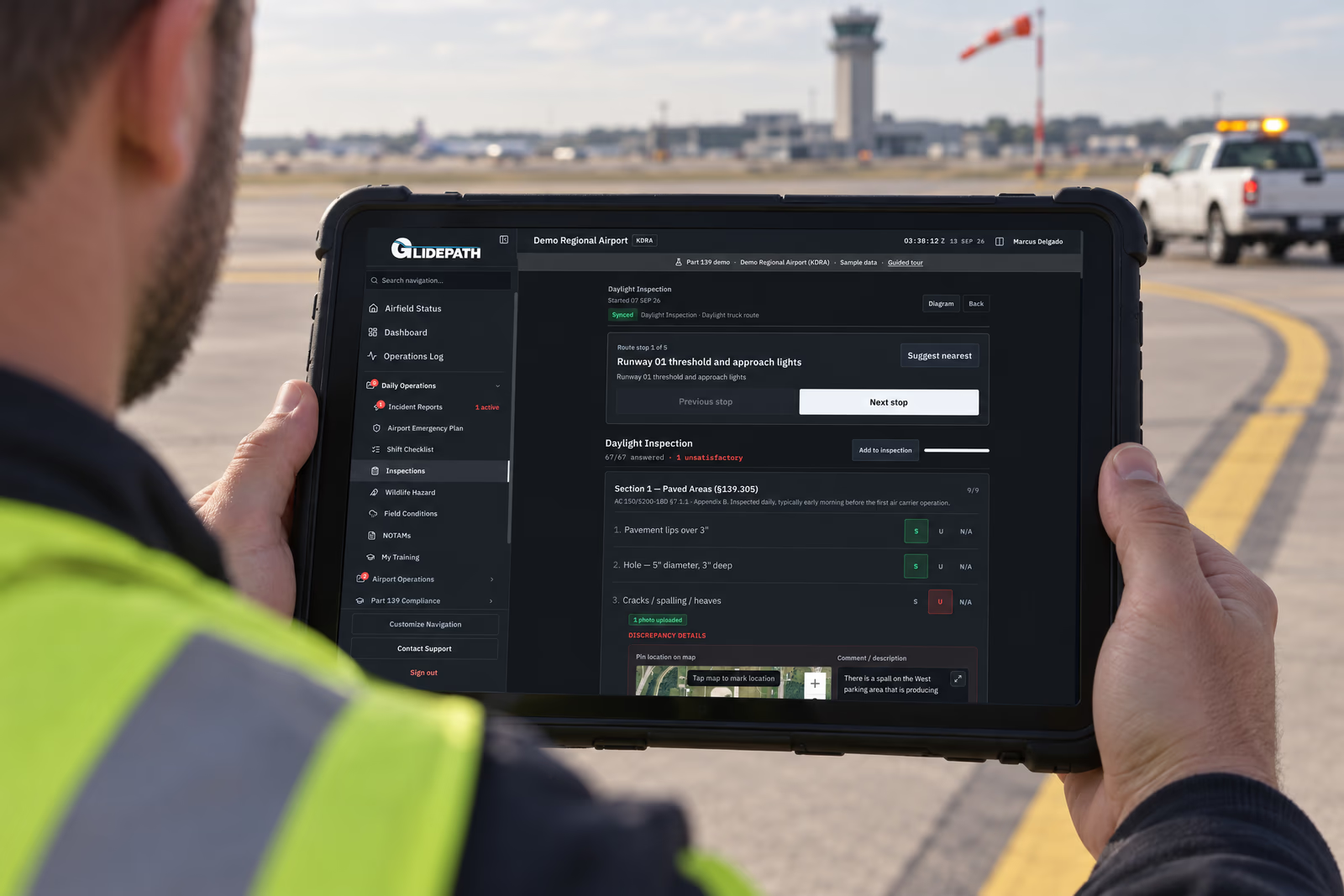
Glidepath is built so one record carries a finding to its fix. A failed inspection item becomes the discrepancy, the discrepancy becomes the work order, and the status change posts itself to the log. You turn on only the modules you run, and every module is included at every size, which is what “move one workflow first” needs. Here is how it plays out, with the caveats that apply.
- Operations Log posts status changes and completions to one chronological record of the day. Every entry carries a Zulu timestamp and the operating initials of whoever made it, and whatever is on screen exports to Excel or PDF in one step.
- Events Log (AF Form 3616) is the same log for military airfields. An entry added after the day’s review has been signed off is flagged Amended, so a backdated addition is visible as one.
- Shift Checklist resets each day and will not file until every item is confirmed. Earlier days are kept in history exactly as they were finished, and are not editable.
- Self-Inspections and Discrepancies and Work Orders connect the finding to the fix: a failed item opens a discrepancy that already carries the note, the photo, and the exact spot. Completed work sits at awaiting verification, and closing it is a separate, dated step. Military discrepancies work the same way.
- Traffic Log replaces the shared spreadsheet at the ops desk with one live log. The same entry feeds the tower board and the public terminal display, and an aircraft past its ETA raises its own alert.
- SOPs and Local Guidance replaces the sign-in sheet. Acknowledging a document attaches a name, operating initials, and a date to that version, and a replacement file clears the old acknowledgments for re-review.
- Records Export generates PDF, Excel, photos, an interactive viewer, or raw JSON for any period and set of modules, entirely in the browser, in a ZIP with a start-here cover sheet and a SHA-256 manifest. The customer owns the records. The military export works the same way.
- Daily Reviews (military) assemble the day’s inspections, checks, discrepancies, and events log entries into one summary before sign-off.
- Offline: supported entries save on the device and sync when the connection comes back, and Pending sync shows unsent work. Some actions and photo uploads need a connection, and a cached status is not a fresh observation. More in the FAQ.
- Hosting and access: a commercial cloud product on AWS, with permissions enforced at the database and each installation’s records isolated. It holds no U.S. government cloud authorization today. Security and deployment.
If you have mapped which paper log you would retire first, bring it to a Glidepath walkthrough. Request a demo and we will run that workflow against your own airfield’s setup, from the first check to the exported record.
Sources
Start with the workflow you’d retire first.
Bring one paper log or spreadsheet to a walkthrough and see it run on your own airfield’s setup.
Request a demo